📐 Image Resizer | Resize Images Online
Resize any image to any dimension. Preset sizes for social media, thumbnails, and custom dimensions.
📐 Image Resizer: A Simple Guide to Resizing Images Online
Updated November 2026 | 15 min read | By Zain Uddin
Have you ever needed to change the size of an image before uploading it to a website, sharing it on social media, or submitting it through an online form? I have worked with different image sizes while testing this tool, and I know that choosing the right dimensions can make the process easier.
Our free online Image Resizer lets you change image dimensions using preset sizes or your own custom width and height. You can also use the target KB compression option when you need a smaller image file. In this guide, I will explain how image resizing works, share some commonly used image sizes, and show my own testing results.
🎯 What is an Image Resizer?
An image resizer is a tool that changes the width and height of an image, usually measured in pixels. For example, you can take a large image measuring 4000 × 3000 pixels and make it smaller for a website, social media post, or online form.
Different websites and platforms often use different image dimensions. A photo that looks good on your computer may be too large for a profile picture or may need to be adjusted before uploading. An image resizer helps you prepare the image for the size you need.
Keep in mind that resizing and compression are not exactly the same. Resizing changes the image dimensions, while compression reduces the file size. Both can be useful when preparing images for online use.
📊 Popular Image Sizes (Social Media & Web)
Different platforms and websites use different image dimensions. Choosing a suitable size can help your images fit the space where you want to use them. Here are some commonly used sizes:
- 150 × 150: Downloaded JPG size: 7.16 KB.
- 300 × 250: Downloaded JPG size: 17.5 KB.
- 500 × 500: Downloaded JPG size: 45.3 KB.
- 640 × 480: Downloaded JPG size: 52.9 KB.
- 800 × 600: Downloaded JPG size: 75.0 KB.
- 1200 × 628: Downloaded JPG size: 105 KB.
- 1080 × 1350: Downloaded JPG size: 171 KB.
- 1080 × 1080: Downloaded JPG size: 145 KB.
- 1280 × 720: Downloaded JPG size: 121 KB.
- 1920 × 1080: Downloaded JPG size: 220 KB.
- 700 × 400 (Custom Dimensions): Downloaded JPG size: 45.3 KB.
- 1680 × 944 (Compression Test): Downloaded JPG size: 38.8 KB after entering a 50 KB target.
🎯 How to Resize an Image (Step-by-Step Guide)
Resizing an image with this tool is simple. I have explained the steps below so you can follow them easily, even if you are using an image resizer for the first time.
- Step 1: Upload Your Image: Click the upload area and choose the photo or image you want to resize from your device.
- Step 2: Select the Image Size: Choose one of the available preset sizes. If you need a different size, enter your own width and height in pixels.
- Step 3: Use KB Compression (Optional): If you also want to reduce the file size, enter your target KB value and click the Compress Image option. The downloaded file size may be different from the target you entered.
- Step 4: Download Your Image: Once the process is complete, click the relevant download button and save the resized image to your device.
Real Image Resizer Testing Results
I wanted to check how the image resizer works in real use, so I tried its different options and downloaded the results. The screenshot below shows some of the images I resized and the file sizes I got after downloading them.
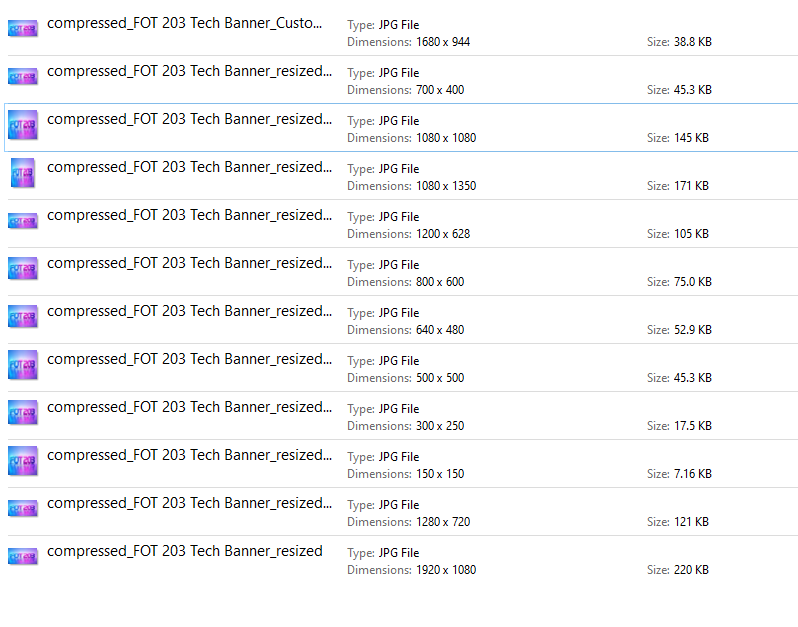
As you can see in the screenshot, the downloaded images have different dimensions and file sizes. One of my compression tests also produced an image of about 38.8 KB.
My Experience Using the Image Resizer
After trying the tool myself, I found that resizing an image is quite simple. I selected different preset sizes, entered my own dimensions, and tried the KB compression option. I also checked the downloaded files on my computer to see whether the results matched my selected settings.
Trying the Preset Image Sizes
I started by testing all 10 preset sizes. These included square sizes like 150 × 150 and 500 × 500 pixels, as well as larger sizes like 1080 × 1080 and 1920 × 1080 pixels.
Each time, I selected a size and downloaded the image. The files were saved as JPG images, but their file sizes were different. For example, the 150 × 150 image was about 7.16 KB, while the 1920 × 1080 image was about 220 KB.
Checking My Own Custom Dimensions
After testing the presets, I wanted to see if I could use my own image size. I entered 700 pixels for the width and 400 pixels for the height, then resized and downloaded the image.
I opened the downloaded file's properties on my computer. It showed the exact dimensions I had entered: 700 × 400 pixels. So, the custom size worked as expected in my test.
Testing Image Compression with a 50 KB Target
Finally, I tried the KB compression option. I entered 50 KB as the target size and clicked the Compress Image button. After downloading the result, I checked the file properties and found that its size was about 38.8 KB.
I noticed that the final file was smaller than the target I entered. This is worth keeping in mind: the target KB value is a guide, and the downloaded image may not have exactly the same file size.
What I Found After Testing
Overall, I was able to use the preset sizes, enter custom dimensions, download the resized images, and try the compression option. I also checked the downloaded files instead of relying only on the values shown on the screen. These tests helped me understand how the different options work and what kind of results to expect when using the tool.
✅ Why Use Our Online Image Resizer?
If you need to resize an image without installing extra software, this online tool gives you a few useful options:
- Free to Use: Resize images without paying or creating an account.
- Target KB Compression: Enter a target file size in KB and use the compression option. The final downloaded size may be different from your target.
- Ready-Made Sizes: Choose from available preset dimensions instead of entering measurements yourself.
- Custom Dimensions: Set your own image width and height in pixels.
- Browser-Based Processing: Images are processed in your browser and are not uploaded to our servers.
- Works on Different Devices: Open the tool on a mobile phone, tablet, or computer.
🖥️ How to Resize an Image in Photoshop
Adobe Photoshop is another option for changing image dimensions. If you already use Photoshop, you can resize an image by following these steps:
- Step 1: Open your image in Photoshop.
- Step 2: From the top menu, select Image > Image Size.
- Step 3: Keep the chain link icon enabled if you want to maintain the original proportions.
- Step 4: Enter your preferred width or height.
- Step 5: Click OK and save or export your resized image.
Another option: If you do not have Photoshop installed, you can use our online image resizer to change image dimensions directly in your browser.
🦊 How to Resize an Image in GIMP
GIMP is a free image-editing program that includes an image resizing option. Here is how you can use it:
- Step 1: Open your image in GIMP.
- Step 2: Click Image > Scale Image.
- Step 3: Enter the width and height you want. Keep the chain icon linked to maintain the image proportions.
- Step 4: Click Scale to apply the new dimensions.
- Step 5: Select File > Export As to save your resized image.
Both Photoshop and GIMP offer image editing features. However, if you only need to change image dimensions, an online resizer can be a convenient alternative.
📱 How to Resize Images on Mac and iPhone
You can resize images on a Mac or iPhone using built-in options or an online image resizer. The steps are a little different on each device.
- On Mac: Open your image in Preview. Click Tools > Adjust Size, enter your preferred width and height, and save the image.
- On iPhone: You can use the Shortcuts app or a compatible photo-editing app to change image dimensions.
Using our online tool: You can also open this page in Safari or Chrome. Upload your image, select a preset size or enter custom dimensions, and download the result.
🎨 How to Resize an Image in Illustrator
Adobe Illustrator also lets you change the size of placed images and vector artwork. If you are already using Illustrator, follow these steps:
- Select the image or object you want to resize.
- Open the Transform panel.
- Enter your preferred width and height.
- Keep the proportions linked if you do not want to stretch the image.
Illustrator is useful for design work. If you only need to resize a regular JPG or PNG photo, you can also use an online image resizer.
📘 How to Resize an Image for Facebook Profile and Cover
Before uploading an image to Facebook, it helps to choose dimensions that suit its purpose. Here are three commonly used image sizes:
- Facebook Profile Picture: 320 × 320 pixels is a commonly used square size.
- Facebook Cover Photo: 820 × 312 pixels is a commonly used desktop cover dimension.
- Facebook Link Image: 1200 × 628 pixels is a commonly used landscape size for shared links.
These dimensions can help you prepare your images, but keep in mind that Facebook may crop or display them differently depending on the device and placement.
⚖️ Image Resizing vs. Image Compression: What's the Difference?
Image resizing and image compression are two different things. Both can help when you are preparing images for websites, social media, or online forms.
- Image Resizing: This changes the width and height of an image in pixels. For example, a 4000 × 4000 pixel image can be resized to 1000 × 1000 pixels.
- Image Compression: This reduces the file size of an image, usually measured in KB or MB. Depending on the compression settings, the image quality may also change.
Sometimes you may need to do both. First, resize the image to the dimensions you need. Then use compression if the file is still too large for uploading or sharing.
❓ Frequently Asked Questions (FAQ)
🔗 Share This Tool
Share the Image Resizer with your friends and family!

About the Author: Zain Uddin
Founder, FreeOnlineTools203.com | Web Developer & SEO Expert
Zain Uddin is the founder of FreeOnlineTools203.com, a platform offering 240+ free online tools across 18 categories. With 3+ years of experience in web development, SEO, and freelancing (Fiverr), he personally builds and tests every tool for accuracy. He is also a published author on Amazon Kindle (KDP).
Expertise: Calculator tools, SEO, article writing, translation, graphics design.